A pull copies another site into the one you're on. The usual reason: bring the live site down to a staging or local copy, so you can work on real content without touching the live one.
The site you pull from isn't changed. The site you pull into is replaced, so SiteRelay saves a restore point of it first.
You need:
- SiteRelay on both sites.
- On the site you pull from: the mode set to Pull-only or Open, and an access key that allows pulls. See Connect two sites.
1. Connect
- On the site you're pulling into, open SiteRelay and click Pull on the Home screen.
- Pick the saved connection, or choose A new connection string and paste the key's string.
- Click Connect.
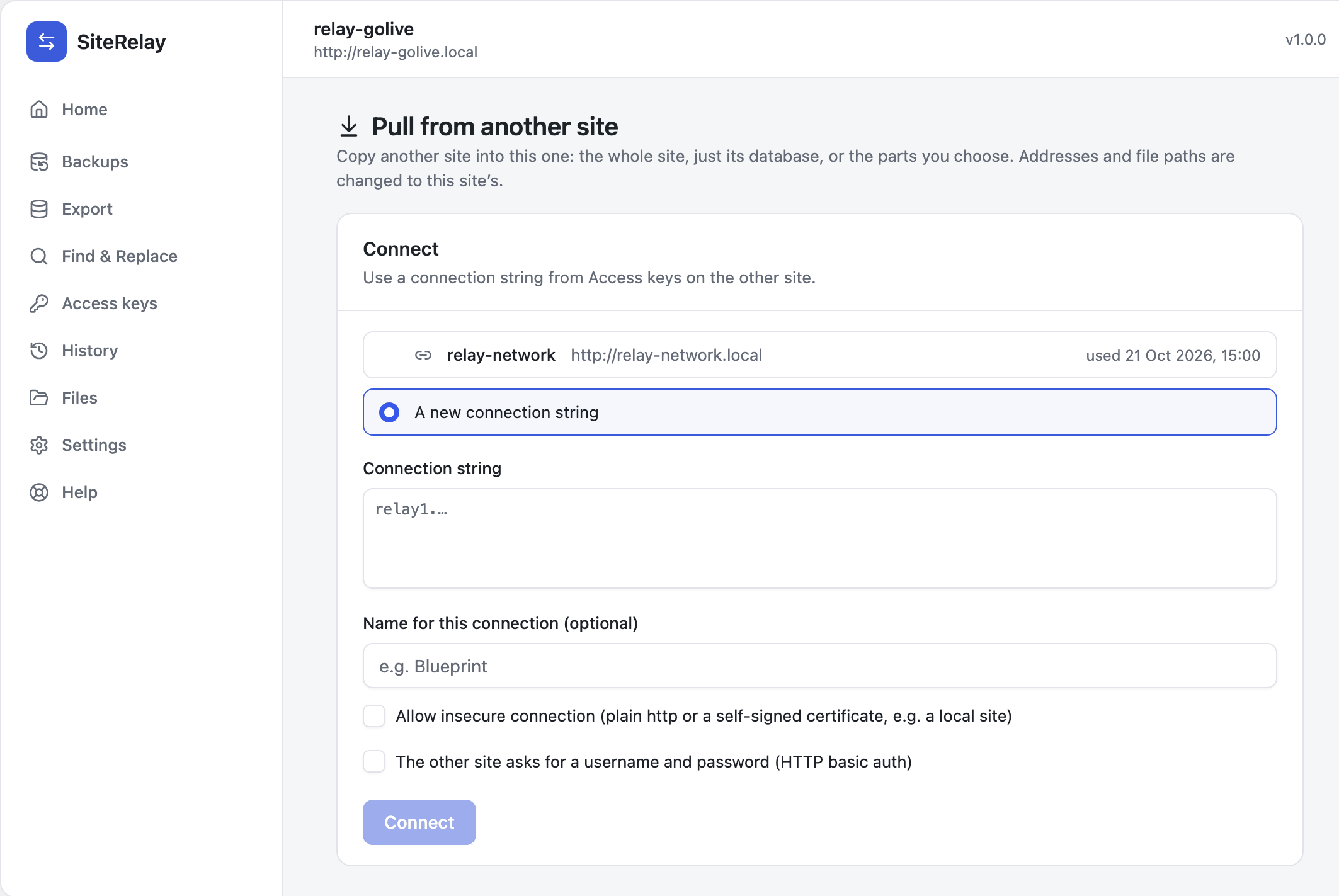
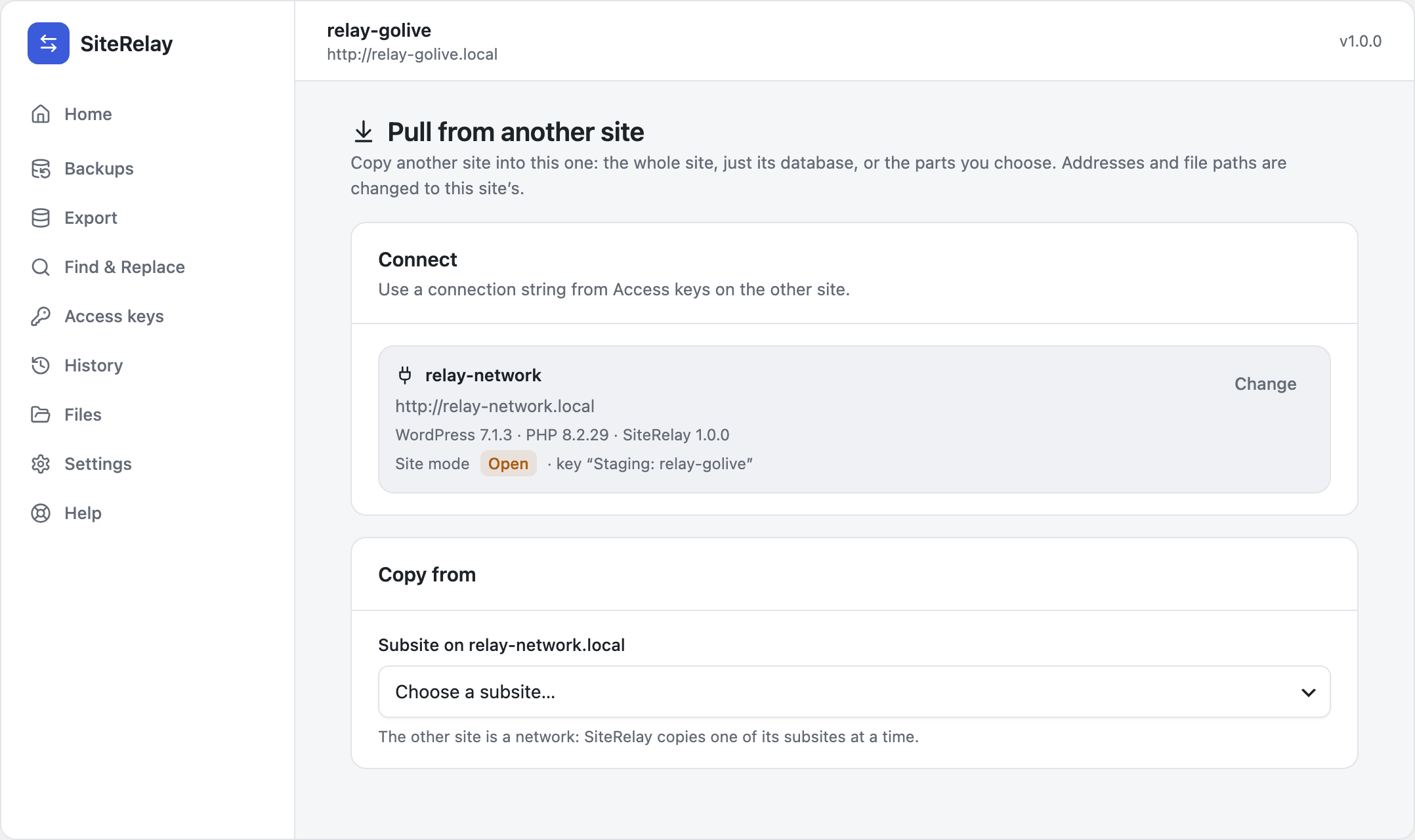
SiteRelay shows the other site's address, its WordPress, PHP and SiteRelay versions, its mode and which key you're using. Change picks a different connection.
Pulling from a multisite network? Choose the subsite under Subsite on the network. SiteRelay copies one subsite at a time. More in Multisite.
2. Choose what to copy
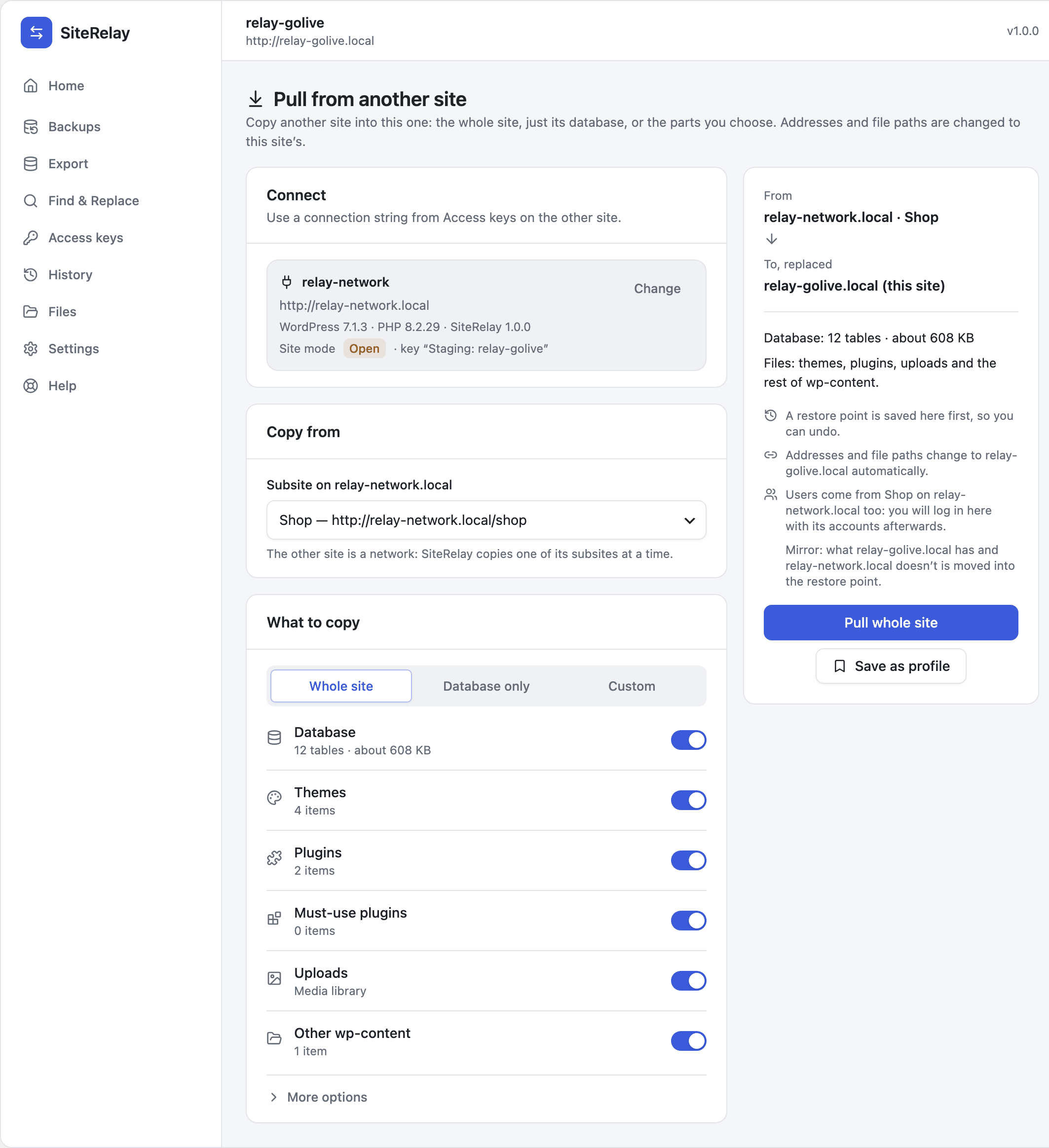
| Choice | Copies |
|---|---|
| Whole site | The database and every file group: themes, plugins, must-use plugins, uploads and the rest of wp-content. Mirror is on, so this site ends up a copy of the other. |
| Database only | Just the tables. Files stay as they are. |
| Custom | The tables and file groups you pick. |
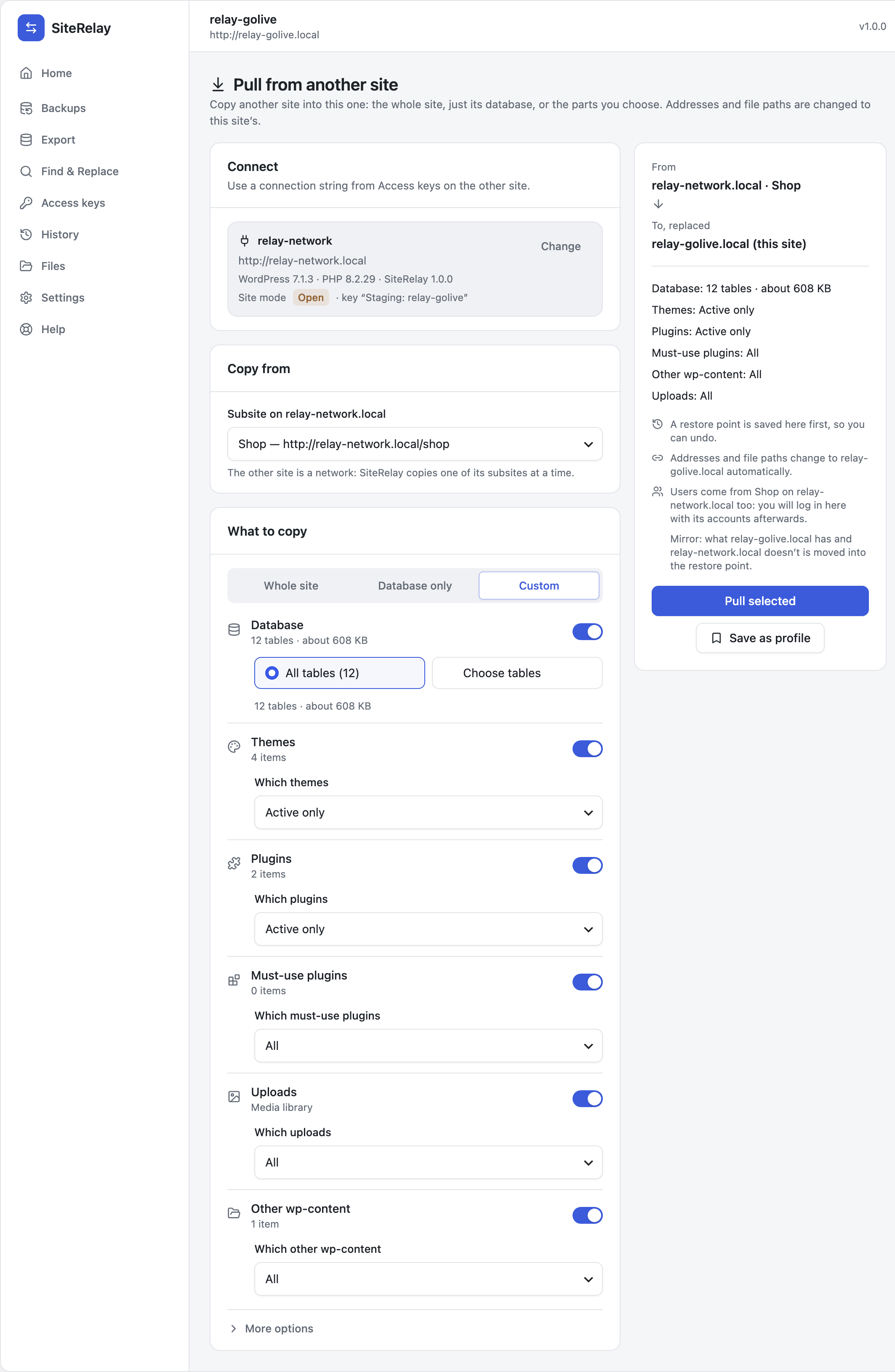
With Custom, each part has its own choice:
- Database: on or off.
- Themes and Plugins: all, active only, only the ones you choose, or all except the ones you choose.
- Must-use plugins and Other wp-content: all, only the ones you choose, or all except the ones you choose.
- Uploads: all, only new or changed, or changed since a date.
More options
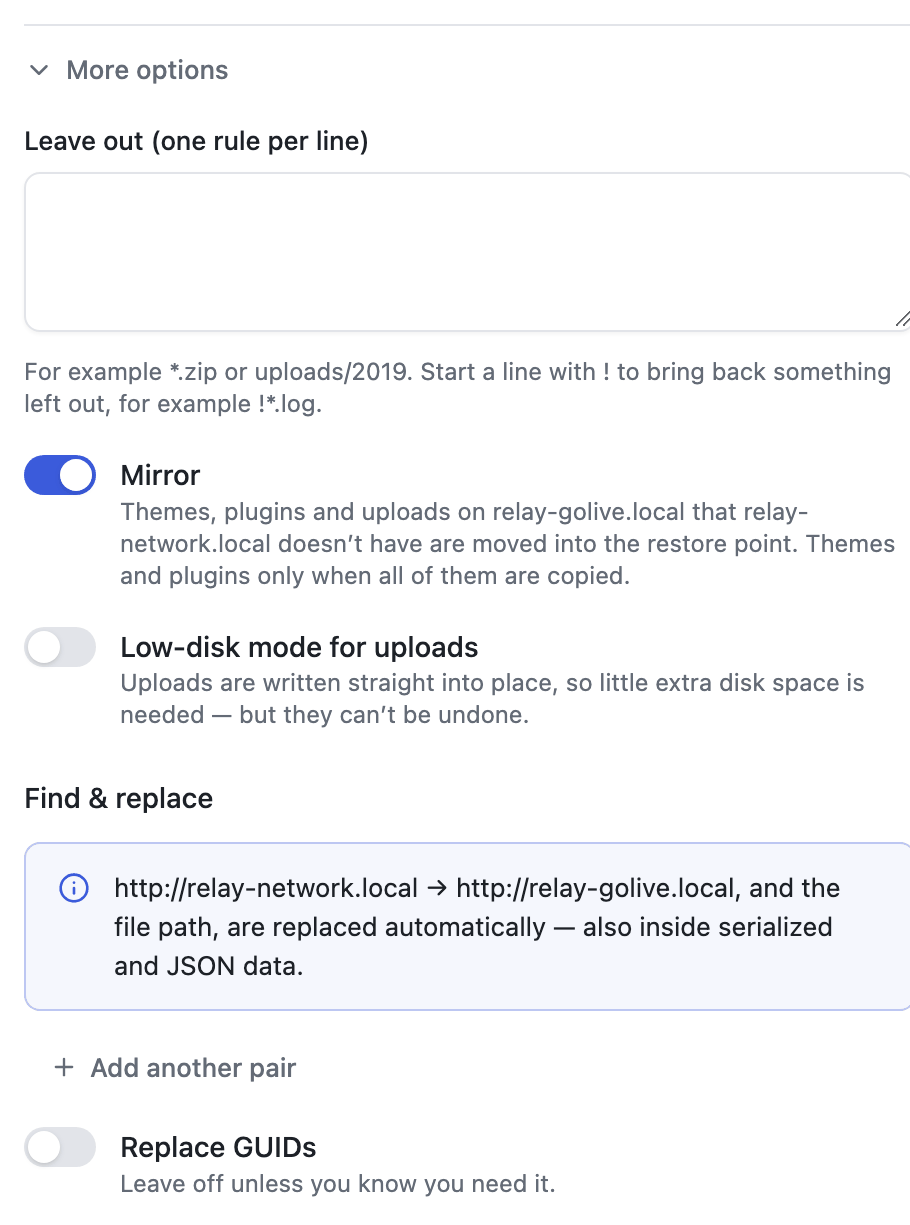
- Leave out: one rule per line, such as
*.ziporuploads/2019. Start a line with!to bring back something SiteRelay leaves out by default, such as!*.log. See What gets copied. - Mirror: themes, plugins and uploads this site has that the other site doesn't are moved into the restore point, so the two match exactly. For themes and plugins, this happens only when all of them are copied.
- Low-disk mode for uploads: uploads are written straight into place, so little extra disk space is needed. The catch: replaced uploads aren't kept, so undoing the pull can't bring them back. It can't be combined with Mirror.
- Find & replace: the other site's address and file path are changed to this site's automatically, including inside serialized and JSON data. Add pairs here only for anything else.
3. Check the summary and start
The summary on the right says exactly what's about to happen:
- From the other site, To, replaced this one.
- How many tables, and which files.
- A restore point is saved here first, so you can undo.
- Addresses and file paths change to this site automatically.
- Users come from the other site too: you will log in here with its accounts afterwards.
Click Pull whole site (or Pull database, or Pull selected). The pull starts right away.
Large sites move in small steps, so hosting time limits don't stop them. While files copy, the progress screen shows how many files and how much data are done, which part is copying now, and the speed and time left. Pause and Cancel are there if you need them. If the connection hiccups, SiteRelay retries by itself, up to three times.
4. Log in and check
When the pull is done:
- If the users came along (they do with the whole site or the users tables), this site now has the other site's accounts. SiteRelay takes you to the login page. Log in with one of their accounts, and you come back to the pull.
- The result says what was copied: 12 tables copied from the other site, 111 files copied (3.0 MB), and what Mirror moved aside.
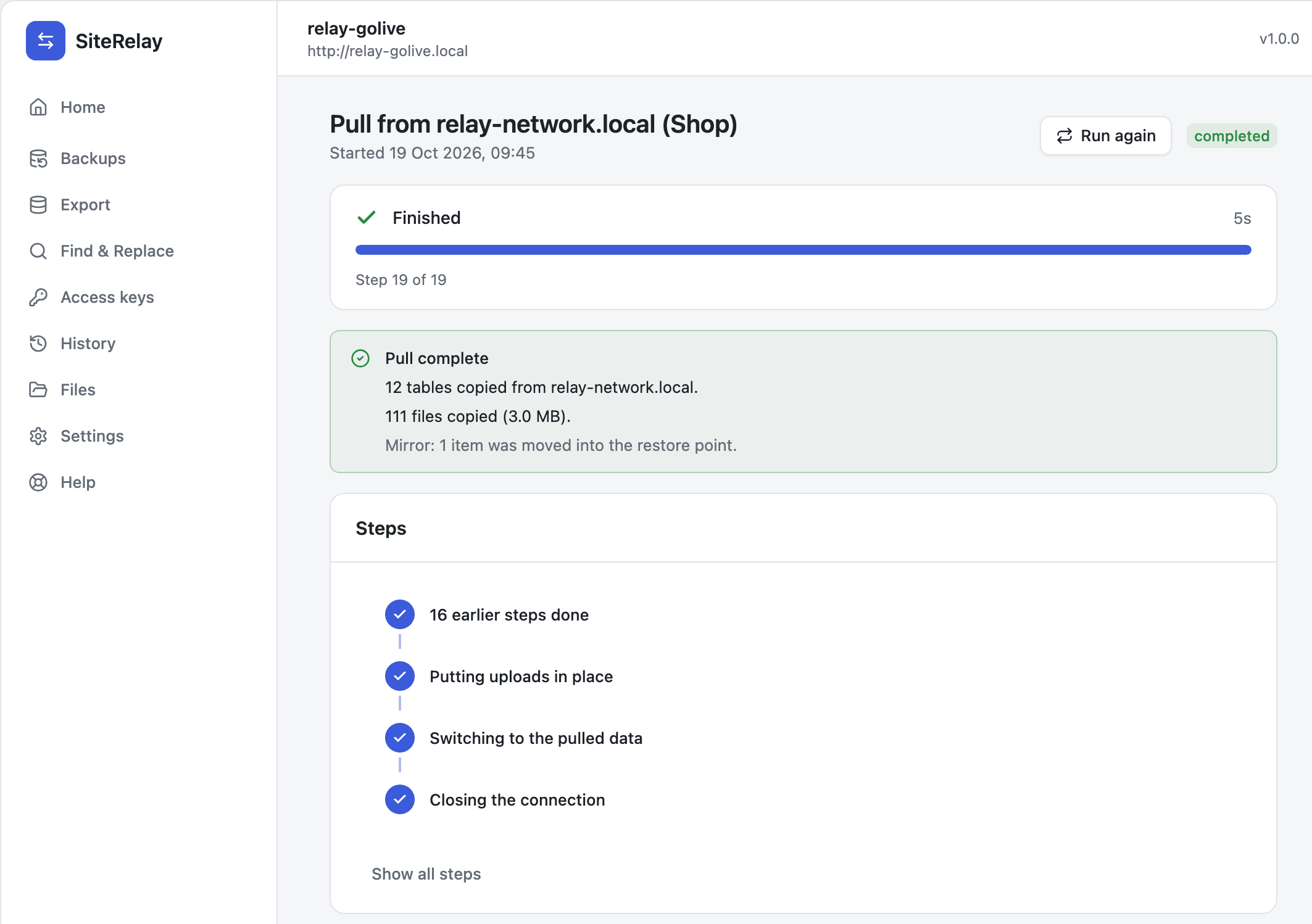
On the other site, History shows the same job as an incoming pull, with the key that was used.
Changed your mind?
Click Undo pull on the finished pull. This site's tables and files go back to how they were before. See Undo anything.
Do it again later
- Run again on the finished pull fills in the same choices.
- Save as profile keeps the choices on the Home screen for next time.
- From a terminal:
wp relay pull. See WP-CLI.