The by-file way to move a site, for example to a new host or to put a finished site live. The two sites never talk to each other. You carry the backup across yourself:
old site → download the backup → upload it on the new site → restore
Use this when the two sites can't reach each other (a site on your laptop, a server behind a firewall), or when you'd simply rather hold the file. To copy straight from one site to another instead, see Pull a site and Push a site live.
You need:
- SiteRelay on the old site, to make the backup.
- A working WordPress install on the new server, with SiteRelay on it. A fresh, empty install is fine: everything in it is replaced.
- Enough disk space on the new server for the backup, its unpacked files and a restore point of what's there now.
1. On the old site: make and download a backup
- Go to Backups → Create backup, give it a label, and click Create backup.
- When it says Backup ready, click Download. You get a
.zipfile.
Step by step, with pictures: Back up a site and restore it.
2. On the new site: upload it
- Open SiteRelay on the new site and go to Backups.
- Click Upload backup, and drop the
.ziponto the box (or click it to choose the file).
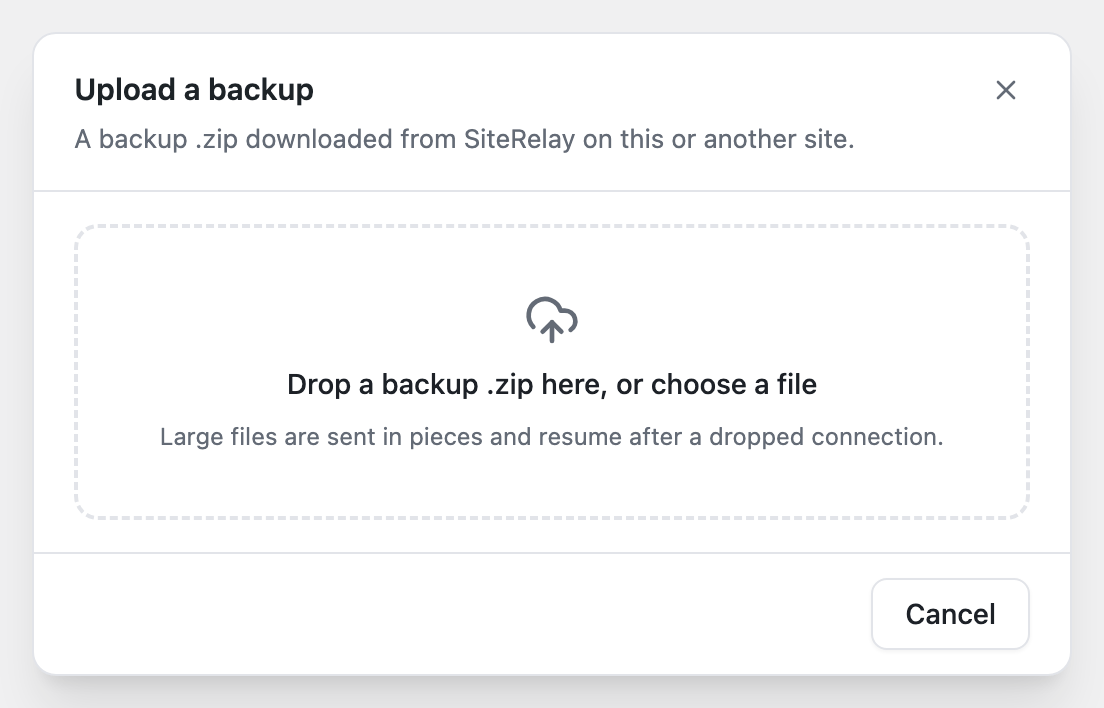
SiteRelay sends the file in pieces, so the host's upload limit doesn't matter, and it picks up where it left off if the connection drops. Then it checks the backup. When it says Backup added, click Done. The backup is now in the list, marked Imported, with the address it came from.
3. On the new site: restore it
- In Backups, click Restore next to the imported backup.
- The dialog says what will happen, including "Addresses are changed from old address to new address". Click Restore site.

SiteRelay replaces the new site's database and files with the backup's, and changes every address and file path to the new site's. That includes addresses inside serialized data and JSON, which a plain text search-and-replace would break. Then it loads the site to make sure it works. If it doesn't load, SiteRelay puts everything back.
4. Log in with the old site's account
The new site now has the old site's users, so you're usually logged out. SiteRelay takes you to the login page: log in with an administrator account from the old site, and you come back to the finished restore.
What stays the new site's own: SiteRelay's settings, access keys and History, and WordPress' secret keys (salts). Everything else comes from the backup.
If it went wrong
The restore kept a restore point of what the new site had before. On the finished job, click Undo restore to go back. See Undo anything.
Messages you might see, and what to do: Troubleshooting.