On a WordPress network, SiteRelay works on one subsite at a time. Everything in the other guides works on a subsite: back it up, restore it, export it, import into it, find and replace in it, and pull or push it. SiteRelay also moves a site into a network as a new or existing subsite, and a subsite out of a network onto its own install.
It doesn't move a whole network in one go.
Set up
- Install SiteRelay in Network Admin → Plugins and click Network Activate.
- Open Network Admin → SiteRelay. Only network administrators can use it.
On the screens that work on a subsite (Backups, Export, Import, Find & Replace, Pull and Push), SiteRelay first asks you to choose the subsite to work on. The Working on picker at the top switches between subsites at any time. Access keys, History, Files and Settings are shared by the whole network.
Bring a site into a network
You can pull a site into the network, push one to it, import a database, or restore a backup. Each time, SiteRelay asks where it goes:
- Replace the subsite you're working on, or
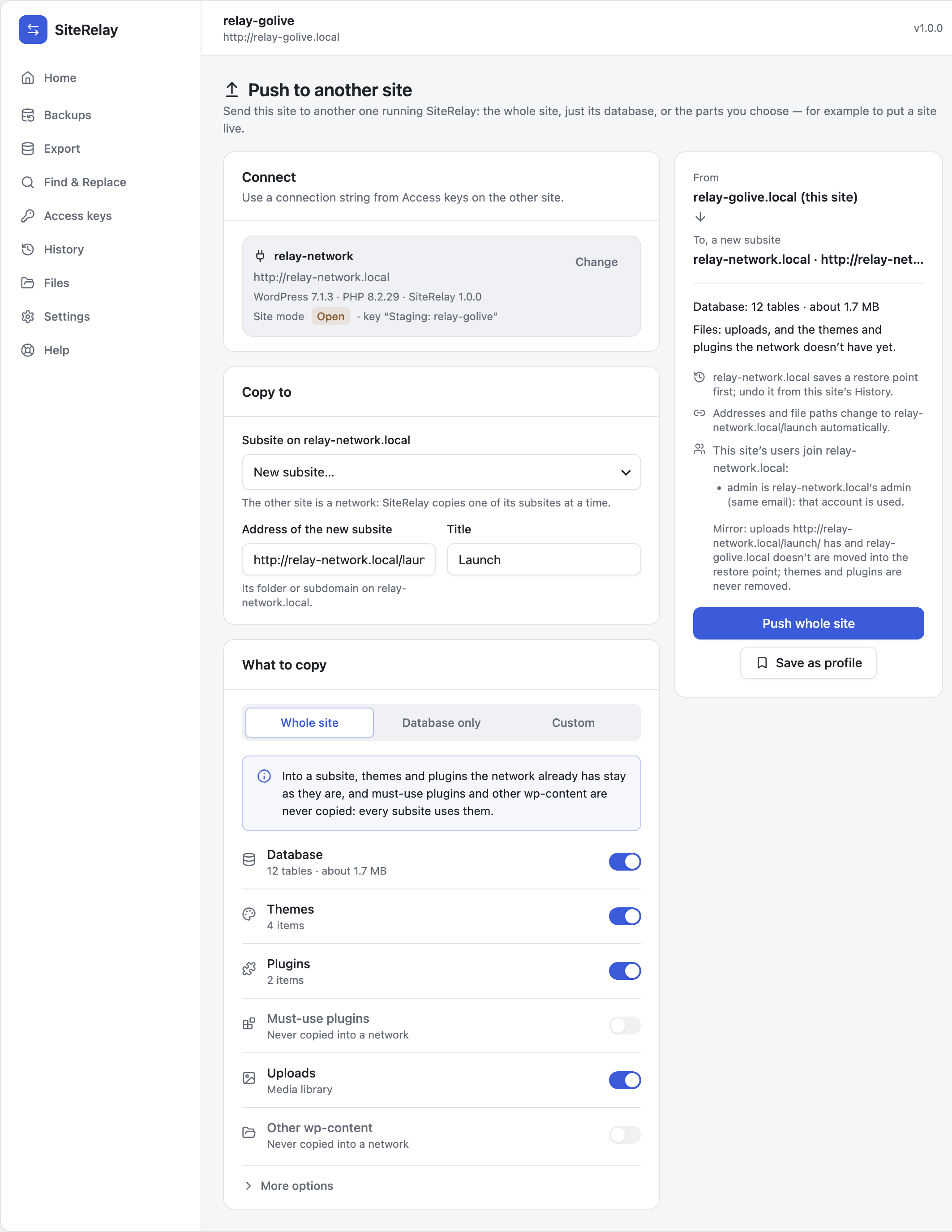
- Into a new subsite: give its address (a folder or subdomain of the network, whichever kind the network uses) and its title. SiteRelay creates it.
From a single site, pushing to a network works the same way. Under Subsite on the network, pick an existing subsite or New subsite…:
What happens to the files
A network shares its themes, plugins and must-use plugins between all subsites, so a site coming in can't simply replace them:
- Themes and plugins the network doesn't have yet are added. The ones it already has stay as they are.
- Must-use plugins and other wp-content are never copied into a network: every subsite uses them.
- Uploads go into the subsite's own uploads folder.
What happens to the users
A network has one set of users for all its subsites. The users of the incoming site join it:
- An account with the same email as one on the network is treated as the same person, and the network's account is used for them on the subsite.
- A login name that's taken by someone else gets a new one, such as
editor-2. - Everyone else gets a new account on the network.
- When an existing subsite is replaced, people who had a role there but aren't in the incoming site lose that role on the subsite. Their network accounts stay.
You see who joins, and how, before anything runs. The summary lists each person under Who joins the network.
Take a subsite out of a network
From a single site, pull from the network and choose which subsite under Subsite on the network:
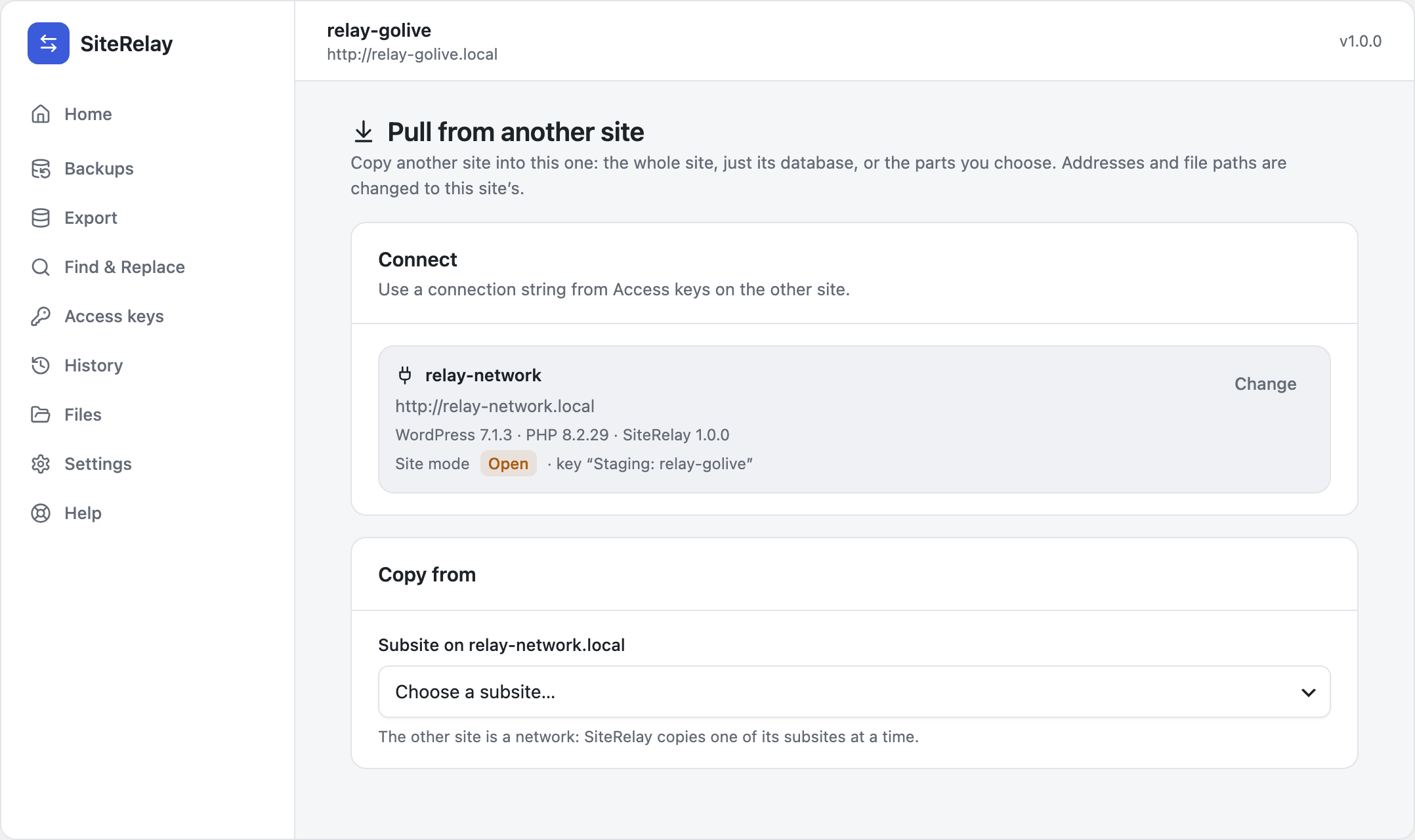
The subsite leaves with the themes and plugins it uses, its uploads and its tables. The single site then has that subsite's users: SiteRelay takes you to the login page, and you log in with one of their accounts.
Undo
Every job keeps a restore point, as on a single site. See Undo anything.
One difference: if the job created a new subsite, undoing it deletes that subsite, with its tables, its uploads and the accounts it brought. Themes and plugins it added to the network go too. SiteRelay asks you before it does this.
From the command line
wp relay subsiteslists the network's subsites.- Every command that works on a subsite takes
--subsite=<id or address>. - Commands that bring a site in also take
--new-subsite=<address>and--subsite-title=<title>. wp relay pullandwp relay pushtake--remote-subsite=when the other site is the network.
All of them are in WP-CLI.