A SiteRelay backup is a full copy of the site: its database and its wp-content folder (themes, plugins, must-use plugins, uploads and the rest). Make one before a theme switch, a big plugin update or a redesign. If things go wrong, restore it, and the site is back as it was.
WordPress itself (the core files and wp-config.php) isn't in the backup. Every WordPress install already has those.
Make a backup
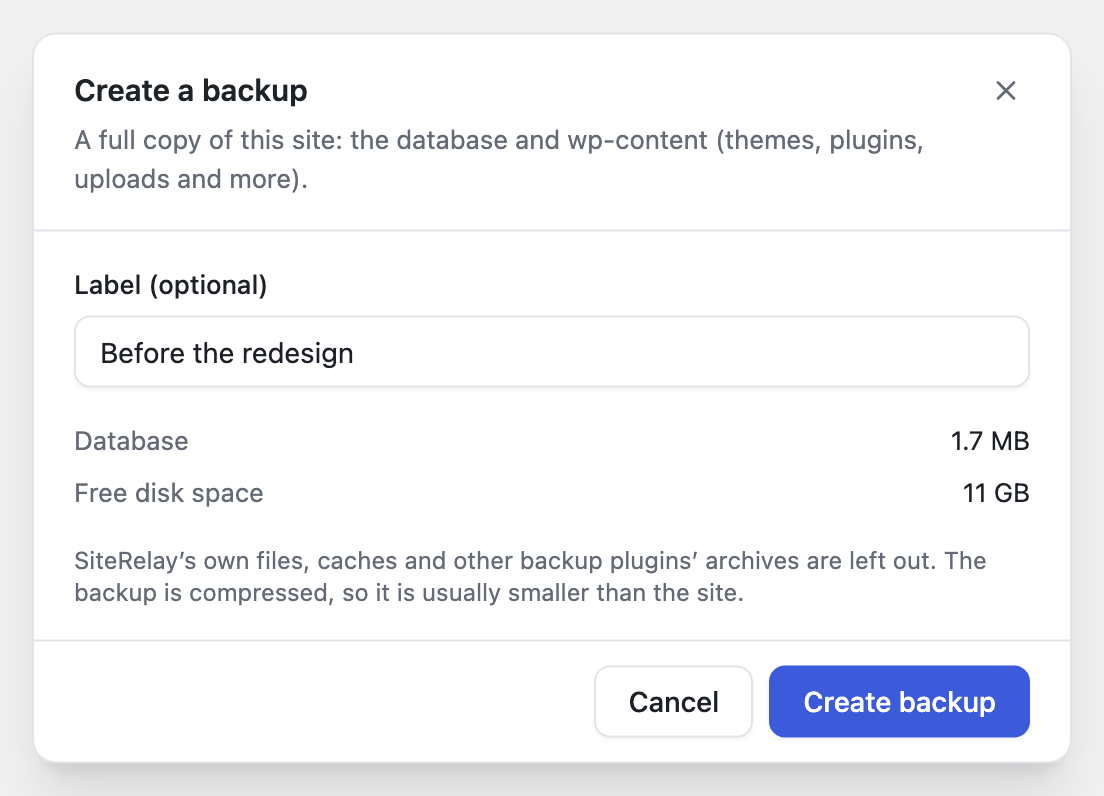
- In SiteRelay, go to Backups and click Create backup.
- Give it a label you'll recognise later, such as "Before the redesign". The label is optional. The dialog shows the database's size and the free disk space, so you can see the backup will fit.
- Click Create backup.
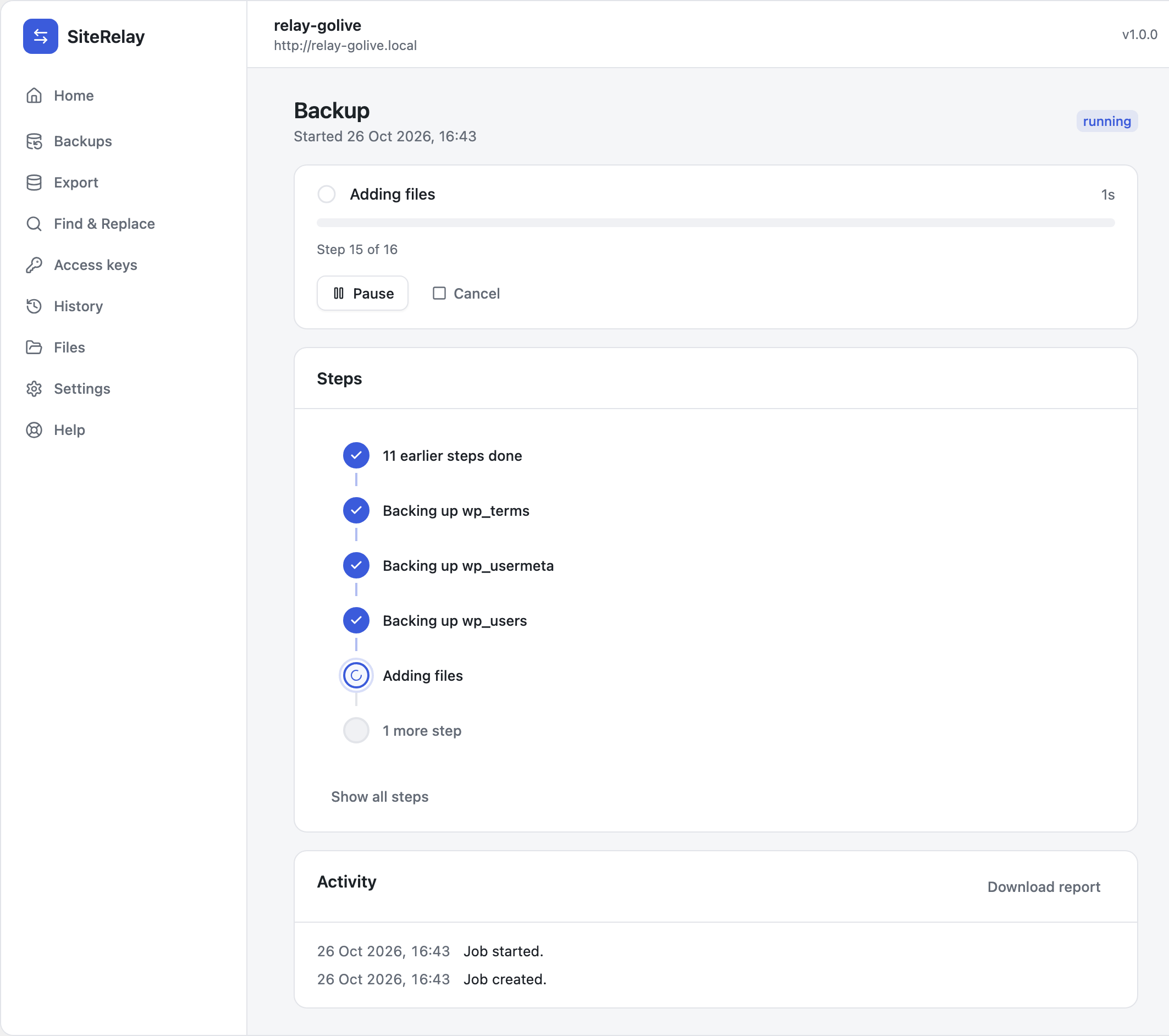
SiteRelay works through the site step by step: the tables first, then the files. You can watch it, Pause it, or Cancel it. It keeps going while you move between SiteRelay's screens. If you close SiteRelay, the job waits and carries on when you open SiteRelay again.
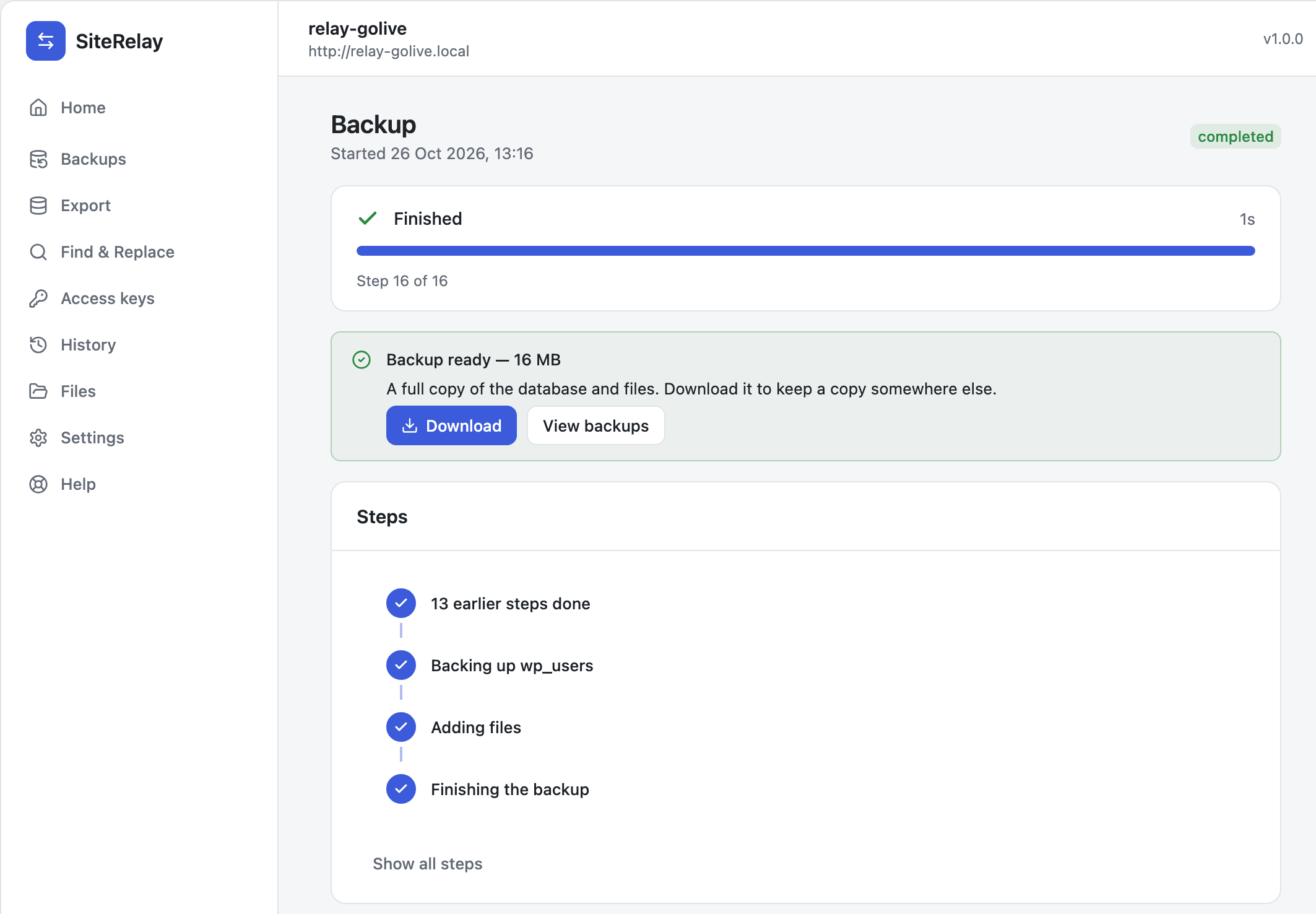
When it's done, SiteRelay says Backup ready with its size. Download saves the .zip to your computer. View backups takes you to the list.
Left out on purpose: SiteRelay's own files, caches, logs, and other backup plugins' archives. A copy of the site doesn't need them, and they'd only make it bigger. The full list is in What gets copied and what's left out.
Your saved backups
Backups lists every backup on this site with its label, date, size, and how many tables and files it holds. A backup uploaded from another site is marked Imported.
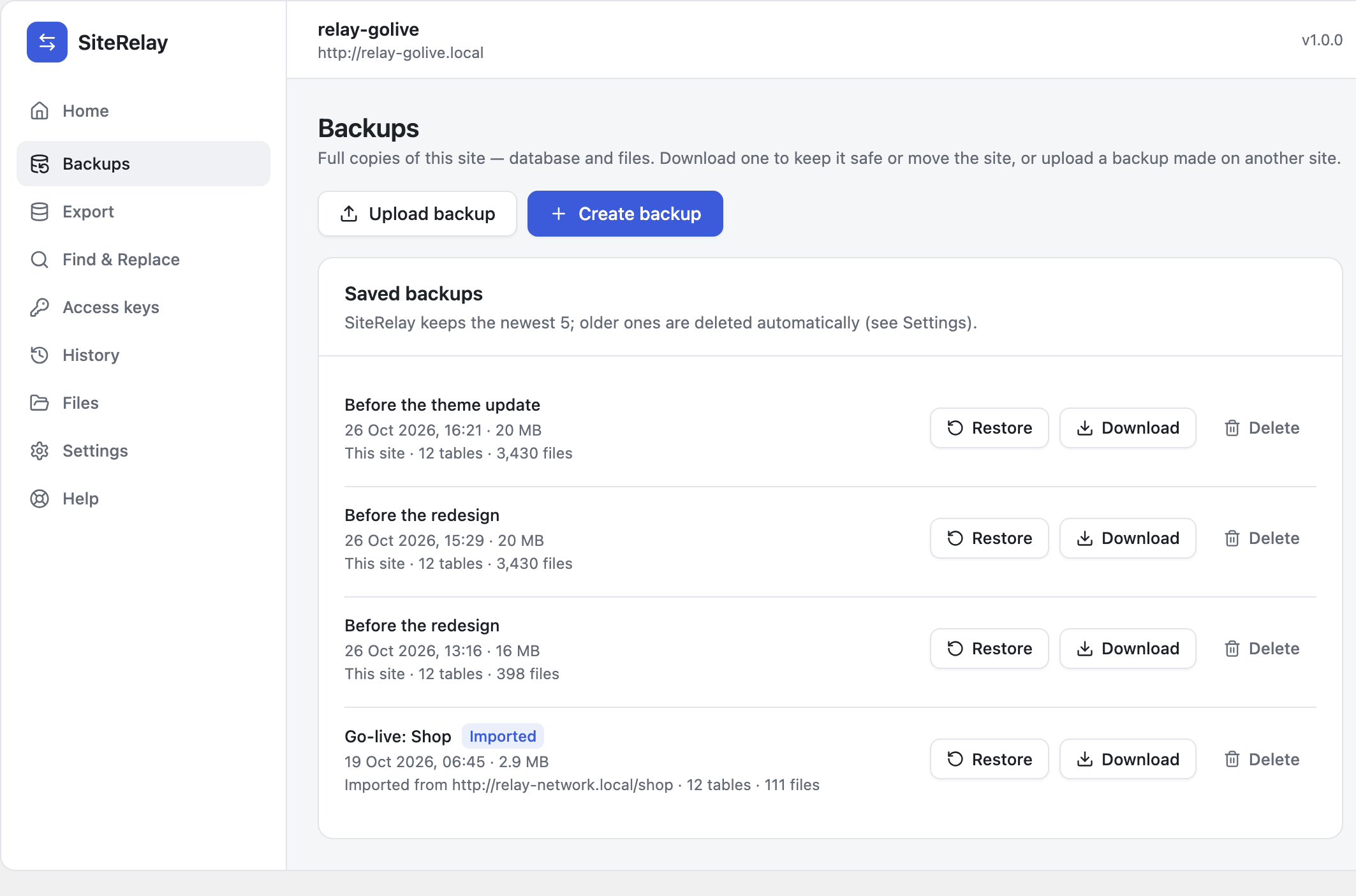
- Download saves a copy somewhere other than this server. Do this for anything you can't afford to lose: if the server dies, the backups on it go too.
- Delete removes the backup file from the server. This can't be undone.
SiteRelay keeps the newest 3 backups and deletes older ones automatically when you make a new one. Change the number (1 to 20) under Settings → Retention → Backups to keep.
Backups are stored in wp-content/uploads/relay/backups. The folder is private, the file names can't be guessed, and download links work only while you're logged in.
Restore a backup
- Go to Backups and click Restore next to the backup.
- Read what will happen, then click Restore site:
- This site's database and files are replaced with the ones in the backup.
- Your current site is kept as a restore point, so you can undo this.
- You may need to log in again, with an administrator account from the backup.
- If the backup came from another address, addresses are changed to this site's.

If the backup was made on a newer PHP version than this server runs, the dialog warns you first. Plugins or themes that need the newer PHP could stop the site from loading.
SiteRelay checks its own work. Right after restoring, it loads the site. If the site doesn't load, SiteRelay puts everything back as it was and tells you why.
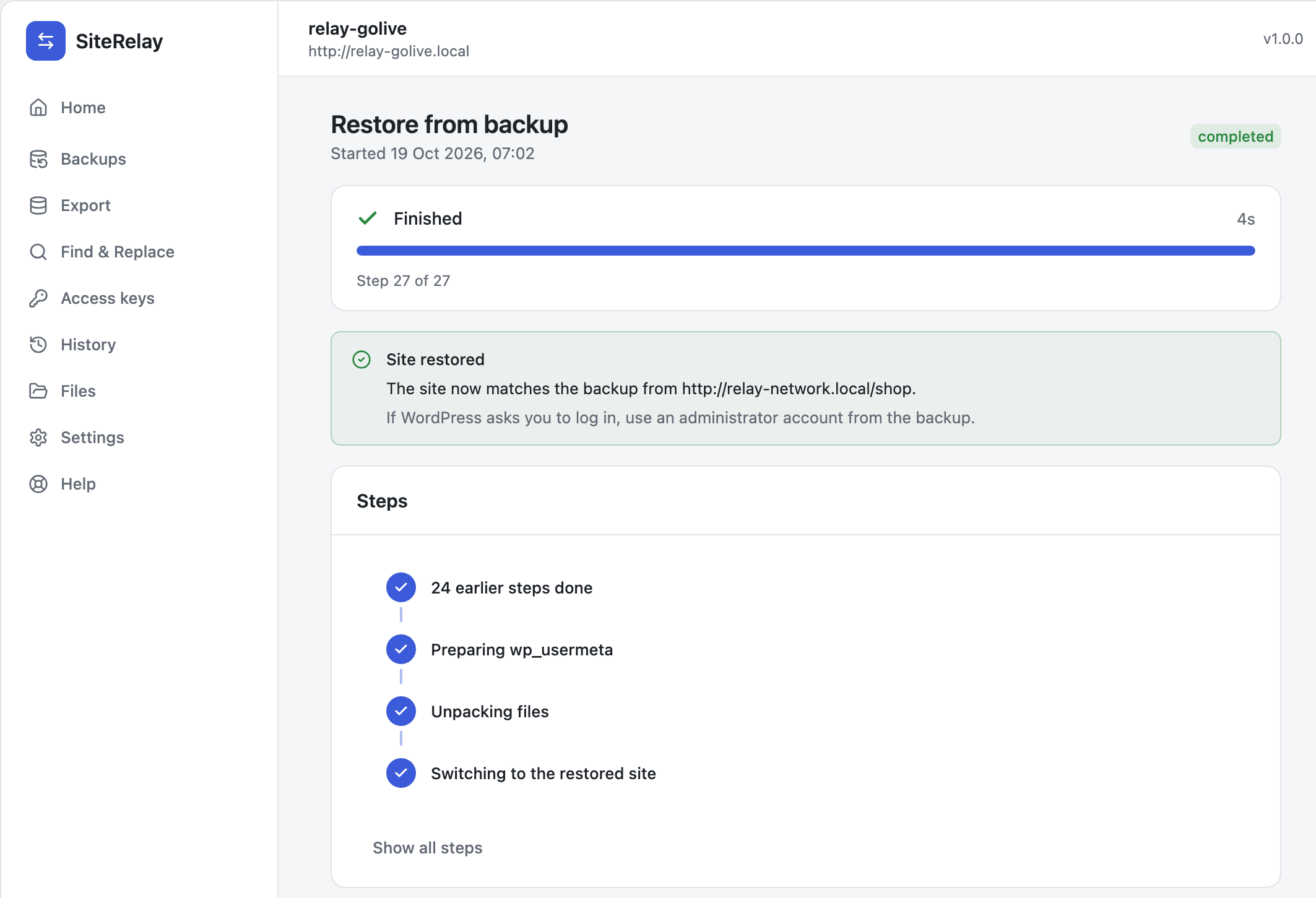
When the restore is done, the job page says Site restored. If the backup had different users, SiteRelay takes you to the login page. Log in with an administrator account from the backup, and you come back to the job.
Changed your mind?
On the finished restore's page, click Undo restore. The database and files go back to how they were just before the restore. You can find the job again under History at any time, for as long as its restore point is kept. See Undo anything.
Next
- Move a site with a backup file: restore the backup on a different server.